Note
Click here to download the full example code
Blender 3D#
Drive Blender 3D from NAVis for high-quality neuron renders.
NAVis comes with an interface to import neurons into Blender 3D for high quality renderings and videos: navis.interfaces.blender.
Installation#
Blender comes with its own Python 3.X distribution! So you need to install NAVis explicitly for this distribution in order to use it within Blender.
There are several ways to install additional packages for Blender's built-in Python. The easiest way is probably this:
-
Find out where Blender's Python lives (this depends on your OS). In Blender's Python console run this:
>>> import sys
>>> sys.executable
[..]/Blender 4.1.app/Contents/Resources/4.1/python/bin/python3.11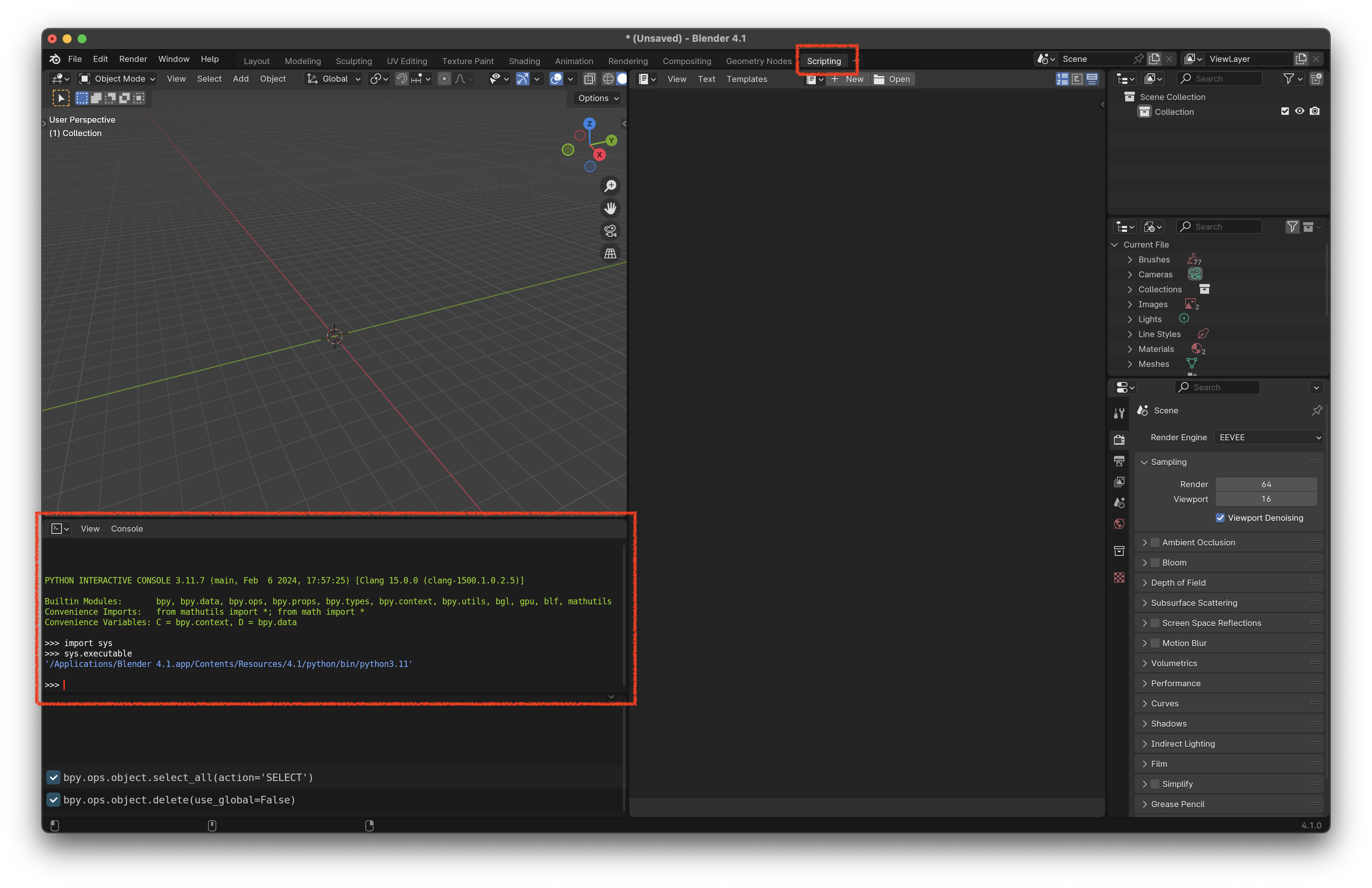
-
Now that we know the Python path we open a normal terminal and check if Blender's Python already came with the package manager
pip.[..]/Blender\ 4.1.app/Contents/Resources/4.1/python/bin/python3.11 -m pip --version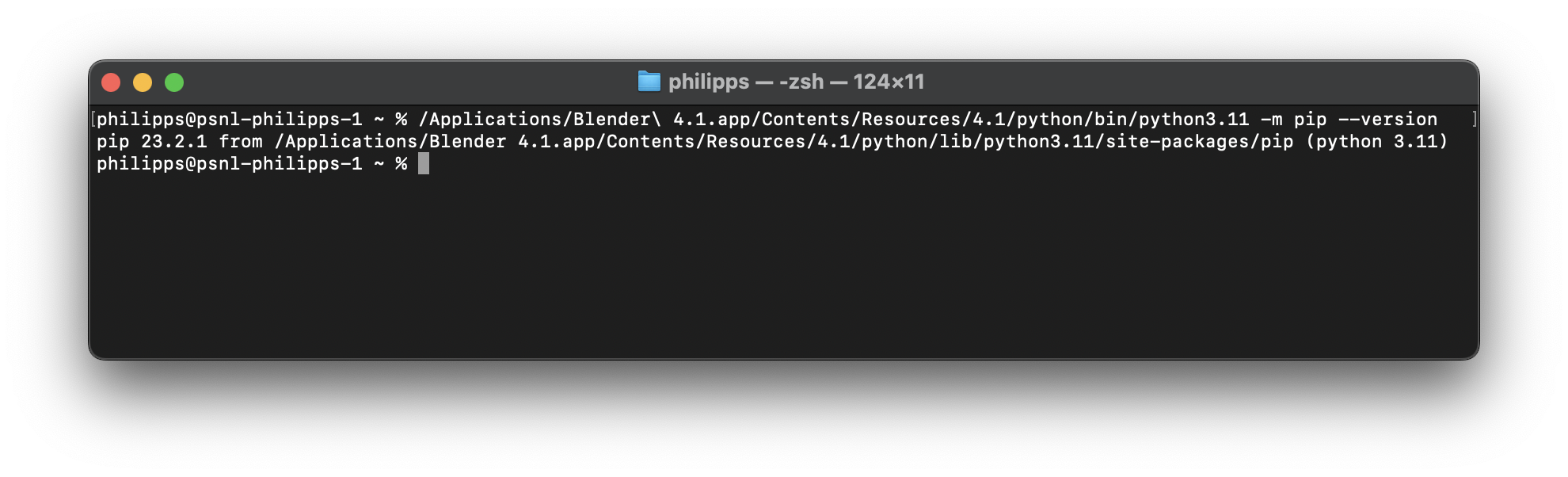
You may have to escape whitespace in the path to Blender's Python executable, like we did above:
Escape each space with a backslash, e.g.
Blender\ 4.1.app/.../bin/python3.11.Wrap the path in double quotes if it contains spaces, e.g.
"C:\...\Blender\python.exe".If the above command throws an error along the lines of
"No module named pip": getpipby downloadingget-pip.pyfrom here and install by executing with your Python distribution:[..]/Blender\ 4.1.app/Contents/Resources/4.1/python/bin/python3.11 get-pip.pyIf
pipis there but horrendously outdated (the current version is24.4), you can update it like so:[..]/Blender\ 4.1.app/Contents/Resources/4.1/python/bin/python3.11 -m pip install pip -U -
Use
pipto install NAVis (or any other package for that matter). Please note we have to - again - specify that we want to install for Blender's Python:[..]/Blender\ 4.1.app/Contents/Resources/4.1/python/bin/python3.11 -m pip install navisIf the install fails to compile
If the install fails with
'Python.h' file not found, Blender's "Python light" is missing its header files and you have to supply them manually:-
Find the exact Blender Python version:
[..]/Blender\ 4.1.app/Contents/Resources/4.1/python/bin/python3.11 -V -
Download the matching Gzipped source tarball (
Python-3.X.X.tgz) from https://www.python.org/downloads/source/ into your Downloads directory. -
Copy the headers from the tarball's
Includefolder into Blender's Pythonincludefolder:cd ~/Downloads/ tar -xzf Python-3.X.X.tgz cp Python-3.X.X/Include/* [..]/Blender\ 4.1.app/Contents/Resources/4.1/python/bin/python3.11
If that still fails, compile the offending dependency on your system's Python and install the wheel:
- Install the exact same version of Python that Blender uses.
- Download the dependency's source (a
tar.gzfrom PyPI's "Download files", or the GitHub repo). - Build a wheel with
python setup.py bdist_wheel(it appears as a.whlin the/distsubdirectory). -
Install that wheel into Blender's Python:
[..]/Blender\ 4.1.app/Contents/Resources/4.1/python/bin/python3.11 -m pip install <wheel-file>.whl
-
-
You should now be all set to use NAVis in Blender. Check out Quickstart!
Quickstart#
navis.interfaces.blender provides a simple interface that lets you add, select and manipulate neurons from within Blender's Python console:
First, import and set up NAVis like you are used to.
>>> import navis
>>> # Get example neurons
>>> nl = navis.example_neurons()
Now initialise the interface with Blender and import the neurons.
>>> # The blender interface has to be imported explicitly
>>> import navis.interfaces.blender as b3d
>>> # Initialise handler
>>> h = b3d.Handler()
>>> # Load neurons into scene
>>> h.add(nl)
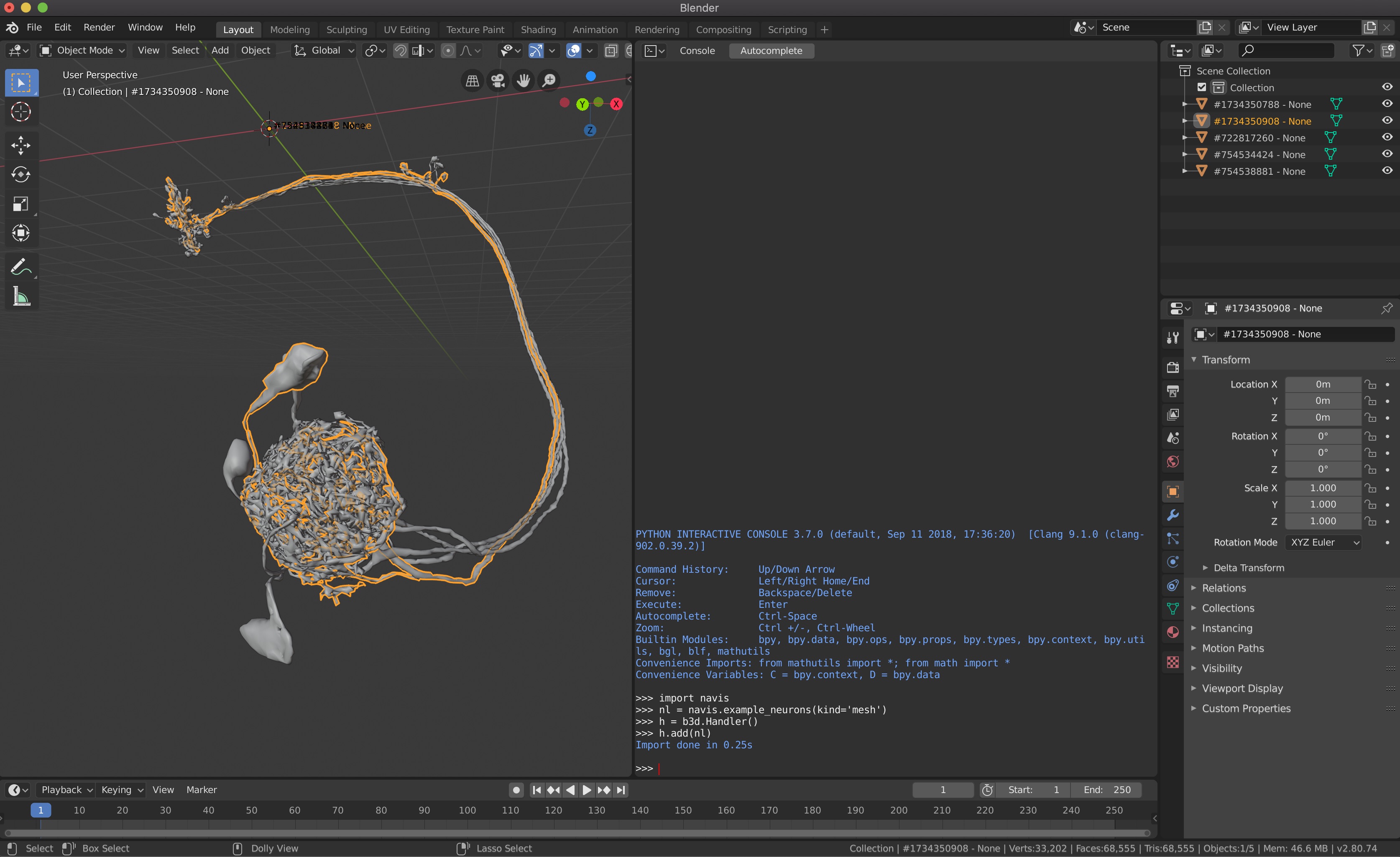
The interface lets you manipulate neurons in Blender too.
h.colorize()               # (1)!
h.neurons.bevel(0.02)      # (2)!
subset = h.select(nl[:2])  # (3)!
subset.color(1, 0, 0)      # (4)!
h.clear()                  # (5)!
- Give every neuron a different color.
- Set the thickness (bevel) of all neurons.
- Select a subset of neurons - here the first two.
- Color that subset red (values are
R, G, B). - Remove all objects from the scene.
Note
Blender's Python console does not show all outputs. Please check the terminal if you experience issues. In Windows simply go to Help >> Toggle System Console. In MacOS, right-click Blender in Finder >> Show Package Contents >> MacOS >> double click on blender.
Last but not least, here's a little taster of what you can do with Blender:
Reference#
The navis.interfaces.blender.Handler is providing the interface between NAVis and Blender.
Total running time of the script: ( 0 minutes 0.000 seconds)
Download Python source code: tutorial_interfaces_02_blender.py
Download Jupyter notebook: tutorial_interfaces_02_blender.ipynb